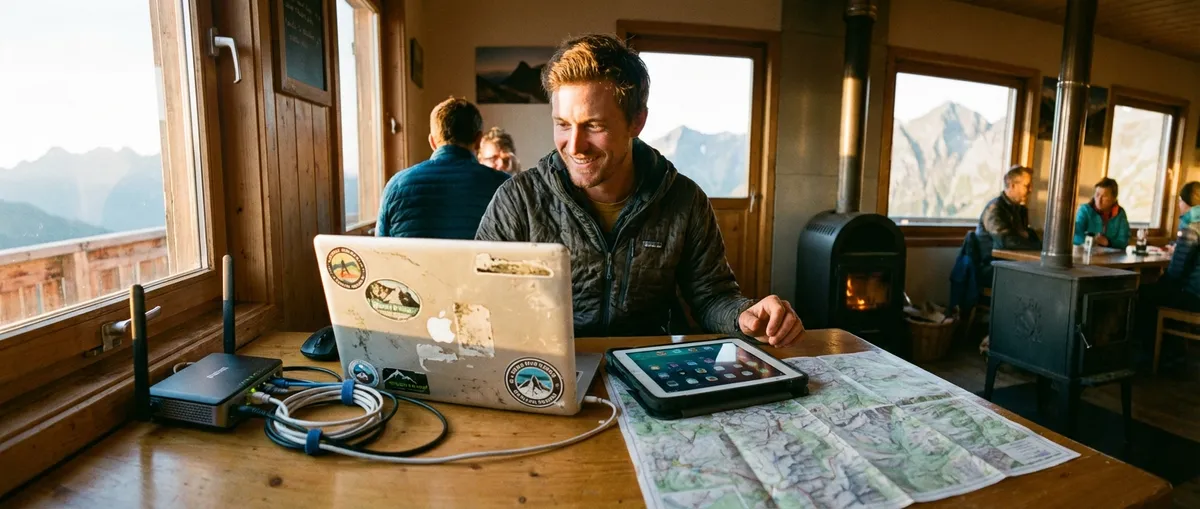
When you’re working from buses, guesthouses, and café corners, your tools are either a quiet backbone or a constant fire drill. The goal isn’t to collect apps—it’s to build a digital spine that keeps you operational when the Wi‑Fi is bad, the power flickers, and clients still expect results. This isn’t a shiny-tools list; it’s a field-tested approach to choosing and using digital tools so you can work, move, and stay hired without babysitting your tech.
Treat Your Laptop and Phone as Mission-Critical Gear
For a digital nomad, your laptop and phone aren’t gadgets—they’re life support. That means choosing and maintaining them like a professional treats tools, not like a casual traveler picking a new toy.
Aim for reliability over trend. A slightly older, proven business-grade laptop (ThinkPad, MacBook Pro/Air, Dell XPS/Latitude) with solid battery life will usually outperform a flashy “creator” machine in rough conditions. Prioritize SSD storage, at least 16GB of RAM if you do anything beyond email and docs, and ports you actually use (HDMI/USB‑A adapters fail at the worst times).
On your phone, think of three functions: communications (calls, WhatsApp, Signal), authentication (2FA apps, banking), and backup hotspot. Choose a widely supported model so repair shops and replacement parts are easy to find globally. Protect both devices with good cases and surge-protecting chargers—power in some regions is inconsistent, and a voltage spike can end your trip faster than any border control.
Finally, run your devices like a cockpit: minimal random software, consistent updates (scheduled during downtime), and regular health checks (battery, storage, backups). Clutter and neglect cause more “emergencies” than border crossings ever will.
Build a Storage System That Survives Lost Luggage
At some point, something will go missing: a bag, a drive, or a device. Your storage system should assume that and keep working anyway.
Use three layers of storage:
- Local storage for speed: active projects on your laptop for offline work.
- Cloud storage for resilience: a major provider like Google Drive, OneDrive, Dropbox, or iCloud for cross-device access and version history.
- Physical backup for worst-case scenarios: a small, encrypted SSD you back up to weekly, then keep separate from your laptop bag when in transit (jacket, daypack, etc.).
Enable automatic cloud sync for critical folders, but don’t depend on constant internet. Tools that allow selective offline access (e.g., Google Drive “Available offline,” OneDrive’s Files On-Demand, Dropbox Smart Sync) let you keep key client folders and reference docs ready even on long flights or in rooms with “Wi‑Fi” that’s really just a decorative password on the wall.
Whatever tools you pick, commit to a simple routine: weekly full backup to the SSD, daily sync to cloud if bandwidth allows, and never keep your only copy of anything irreplaceable in one place. If you lose a bag and only lose hardware—not work—you’re set up correctly.
Use Communication Tools Like a Professional, Not a Tourist
Digital nomads live or die by communication. You’re competing with people who are always in the same time zone and rarely drop off the grid. Your tools and habits need to close that gap.
Start with stable channels: email, a primary chat platform (Slack, Microsoft Teams, or at minimum WhatsApp/Signal), and at least two video call options installed and tested (Zoom, Google Meet, Teams). Before big calls, test your audio and video in the actual environment—café noise, hostel walls, or co‑working spaces all behave differently in practice.
Don’t rely on hotel Wi‑Fi when it matters. Configure your phone as a personal hotspot and know your data options in advance. Purchase local SIMs or regional eSIMs, and test your hotspot performance before important meetings. For places with unpredictable connectivity, consider a lightweight setup like:
- Meetings on Zoom/Meet with camera off unless necessary
- Audio-only backup numbers (WhatsApp voice, regular phone) listed in your calendar invites
- Pre-sent documents or slides so the call can continue even if your connection dips
Set clear communication norms with clients: your working hours in their time zone, your expected response time on different channels, and what to do if a call fails (e.g., “If Zoom fails, I’ll call you on WhatsApp within 5 minutes”). Tools matter, but professional expectations keep the relationship intact when tech hiccups.
Make Your Workflow Offline-Ready by Default
If your work collapses every time the Wi‑Fi hiccups, you’re not set up for a mobile life. Good digital tools let you keep going offline and quietly sync when the connection returns.
Use tools that explicitly support offline work:
- Note-taking (Obsidian, Apple Notes, Notion with offline mode properly configured)
- Documents and spreadsheets (Google Docs/Sheets with offline enabled, Microsoft Office apps)
- Task managers (Todoist, TickTick, Things, or even a synced calendar with offline access)
The key is to design your workflow so everything you need for the next 24–48 hours is available without internet: briefs, key emails (downloaded or starred), project files, and reference docs. For example, at the end of your workday, spend five minutes prepping the next one: mark critical documents as offline, download any large assets, and copy important meeting info into a local note.
Sync discipline matters as much as the tools. When you hit a stable connection—a co‑working space, a reliable café, or your accommodation—let your apps fully sync. Don’t restart your laptop mid-sync, don’t run heavy downloads on a flaky network, and don’t assume “Saved” means “Synced.” Check your cloud tools occasionally from a different device (phone or browser) to confirm files are actually there.
Protect Your Work and Identity Like You Expect Problems
Nomad life exposes you to risks office workers rarely think about: open Wi‑Fi networks, borrowed chargers, shared workspaces, and border officials who can ask to inspect your devices. Your tools should lower those risks without making your life impossible.
Start with the basics:
- Turn on full-disk encryption (FileVault on macOS, BitLocker on Windows where available).
- Use long, unique passwords stored in a reputable password manager (1Password, Bitwarden, Dashlane).
- Enable two-factor authentication (2FA) on critical accounts—banking, email, cloud storage, communication tools—using an authenticator app, not just SMS when possible.
A virtual private network (VPN) isn’t magic, but a reputable one helps on shared networks and in regions with restricted access. Avoid “free forever” VPNs; pay for a service with a clear privacy policy and a history of independent audits. Use it on hotel, café, and airport Wi‑Fi by default.
Finally, assume at least one device will be lost, stolen, or inspected at some point. Prepare by:
- Enabling “Find My” or equivalent tracking and remote wipe options.
- Keeping sensitive client data in secured containers or accounts, not scattered across your desktop.
- Carrying a secondary, low-data-use email and messaging setup for travel bureaucracy and public forms, preserving your main work accounts from unnecessary exposure.
Security tools only work if they fit your daily habits. Choose the simplest effective setup you’re willing to use consistently, then stick with it.
Conclusion
Digital tools won’t fix a chaotic work ethic or bad planning, but they can remove a lot of avoidable pain from nomad life. Treat your laptop and phone as serious gear, build a storage system that survives lost bags, communicate like a professional, design your workflow to function offline, and protect your identity and data as if problems are guaranteed—not hypothetical.
The right setup isn’t the longest list of apps; it’s the smallest, most reliable set of tools you actually use every day, in bad Wi‑Fi, loud rooms, and new cities, without drama.
Sources
- Google Drive Help – Work on Google Drive files offline – Official guide on enabling and managing offline access for Google Drive files
- Microsoft OneDrive – Work offline – Explains how to configure offline file access with OneDrive
- U.S. Federal Trade Commission – Online Security – Practical advice on passwords, 2FA, and avoiding common security risks
- National Institute of Standards and Technology (NIST) – Cybersecurity Basics – Background on core security practices relevant to device and data protection
- Apple – About FileVault encryption – Official documentation on enabling and using full-disk encryption on macOS
Key Takeaway
The most important thing to remember from this article is that this information can change how you think about Digital Tools.