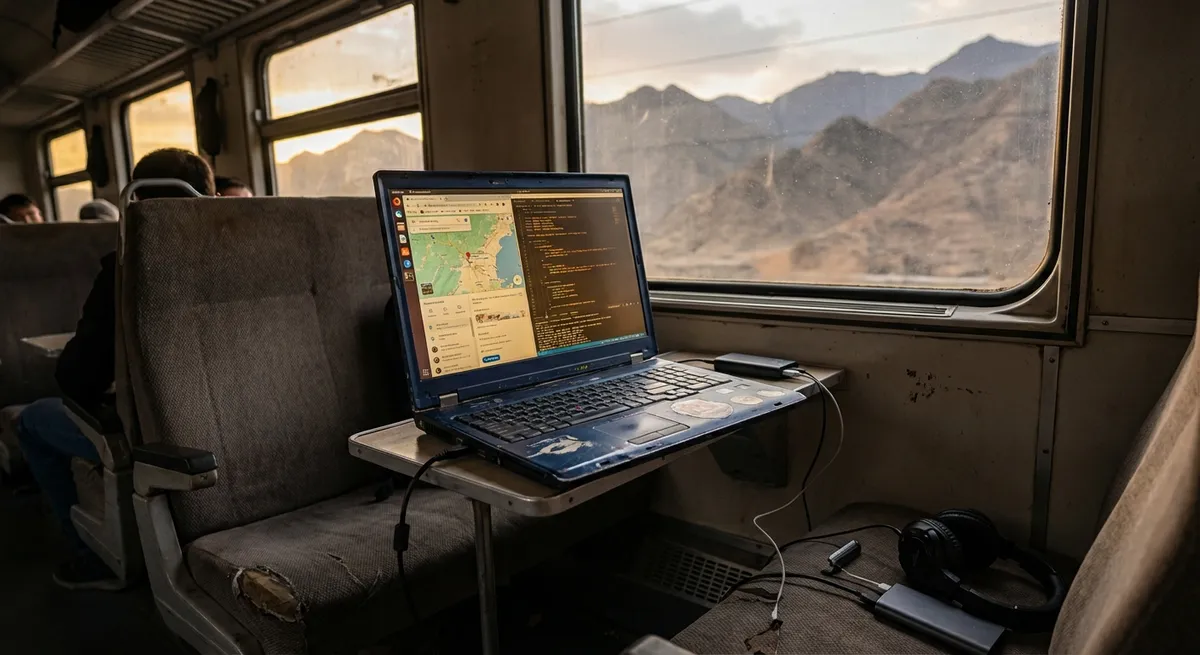
Most digital nomads don’t quit because they run out of money or countries. They quit because their systems fall apart: lost files, missed calls, flaky Wi‑Fi, and tools that only work in a perfect office.
If your laptop is your headquarters, your tools have to be battle-tested for airport Wi‑Fi, random power cuts, and 3 AM client calls in a hostel kitchen. This isn’t about having “all the apps.” It’s about a small, tough stack that survives bad conditions and keeps you earning.
Below are five field-tested ways to choose and use digital tools so your work holds up, even when everything around you doesn’t.
1. Pick “Offline-First” Everything
On the road, the question isn’t “Is this the best app?” but “Does this work when the Wi‑Fi dies mid-upload?”
Offline-first tools let you keep moving when the connection is slow, flaky, or gone. That usually means they:
- Sync automatically when you’re back online
- Cache files or data locally
- Don’t lock you out if you can’t talk to their servers for a while
Practical moves:
- Use cloud suites with strong offline modes.
- Google Docs/Sheets can be used in Chrome with offline mode enabled, then synced later.
- Microsoft 365 still works well locally via Word/Excel and syncs via OneDrive.
- Choose note apps that don’t panic offline. Obsidian, Apple Notes, and Evernote (with local notebooks) are safer than tools that only work online.
- Set up your to-do or project tools with offline capability. Things like Todoist and Asana have mobile apps that keep a local copy; make sure you’ve opened your key projects on each device before you fly.
- Download critical docs before you relocate: contracts, travel docs, key presentations, and any client files you’ll need in the next week.
If a tool refuses to work without a perfect connection, treat it as a luxury, not infrastructure.
2. Treat Cloud Storage Like Your Lifeboat
Your real “home base” is not your backpack. It’s your cloud storage. A stolen laptop or a dead SSD should be an inconvenience, not a career-ending event.
Instead of hoarding files on your laptop and hoping for the best, build a simple, boring backup setup and stick to it.
Practical moves:
- Pick one main cloud provider and commit.
- Google Drive, Dropbox, OneDrive, or iCloud — doesn’t matter as much as using it consistently.
- Mirror your work folder to the cloud automatically.
- On desktop, use the provider’s sync app so whatever’s in your main “Work” folder is always in the cloud.
- Keep a local copy of active projects.
- Mark key folders as “Available offline” on your laptop for when Wi‑Fi dies.
- Carry a small encrypted SSD for belt-and-suspenders backup.
- Once a week, plug it in, copy your top-level “Work” folder, eject, and keep it separate from your laptop when you travel.
- Never leave a city without a fresh backup.
- Make it a ritual: final packing check = passport, card, backup done.
If losing your laptop would make you lose more than a day of work, your backup setup needs tightening.
3. Make Your Communication Stack Boring and Predictable
Nomads don’t lose clients because they move. They lose them because they become unreliable to reach. Your tools should make you boringly predictable, no matter the time zone.
This comes down to visibility, redundancy, and clear rules for how people reach you.
Practical moves:
- Standardize your “reachable” channels.
- For clients: one primary channel (email or Slack) and one backup (WhatsApp/phone). Spell it out in onboarding.
- Use calendar tools that handle time zones correctly.
- Google Calendar or Outlook with a booking tool like Calendly or Microsoft Bookings ensures meetings show up in the right local time for everyone.
- Never rely on only one call app.
- Have Zoom + Google Meet + one “lightweight” backup like WhatsApp or FaceTime.
- If one doesn’t work on weak Wi‑Fi, you can quickly pivot.
- Test your call setup in every new place.
- Join a test Zoom/Meet, check your mic and camera, and see how the connection behaves before real meetings start.
- Use status messages intentionally.
- Set Slack/email autoresponders when you’re in transit or on slow Wi‑Fi with realistic reply windows (e.g., “Replies within 24 hours while I move from X to Y”).
Your goal: nobody should ever wonder if you disappeared just because your SIM card did.
4. Build a Security Baseline You Don’t Have to Think About
If you work from random networks and hand your passport to strangers, your digital security can’t be an afterthought. A decent security setup doesn’t have to be paranoid — it just has to be consistent.
The trick is to set it up once, then let tools handle the heavy lifting.
Practical moves:
- Use a password manager and stop reusing logins.
- 1Password, Bitwarden, or LastPass centralizes your logins, generates strong passwords, and lets you log in fast from any device.
- Turn on two-factor authentication (2FA) everywhere possible.
- Prioritize: email, banking, cloud storage, communication tools, and any platform that pays you.
- Use an authenticator app rather than SMS when you can.
- Install a reputable VPN for sketchy networks.
- Use it on hotel, café, and airport Wi‑Fi — especially for banking, client data, or anything sensitive.
- Encrypt your devices.
- Turn on full-disk encryption (FileVault on Mac, BitLocker on Windows, device encryption on Android/iOS). That way, a stolen laptop/phone is mostly an equipment loss, not a data disaster.
- Keep a “lost device” plan written down.
- Know how to:
- Remotely log out of key accounts
- Revoke device access from Google, Apple, Microsoft, Dropbox, etc.
- Change your primary email and banking passwords fast
You can’t control who sits next to you on café Wi‑Fi, but you can control how much damage they can actually do.
5. Design a Lightweight “Daily Ops” System You Can Run Half-Asleep
The more chaotic your surroundings, the more your tools need to carry the mental load. You’re not aiming for the perfect productivity system — just a simple one you can run on four hours of sleep and a bad espresso.
Think of this as your “daily operating system.”
Practical moves:
- One task hub, not five.
- Pick a single home for tasks: Todoist, Notion, Asana, or even simple lists in Apple/Google Tasks. Everything goes here — no side lists in random apps.
- A repeatable morning check-in.
- Open: email, task app, calendar, and communication tool.
- Answer:
- What must ship today?
- What calls/meetings do I have and in which time zone?
- Is there anything that needs a long, stable connection? (Uploads, backups, big downloads)
- Batch “heavy internet” work.
- Uploads, big syncs, and calls get scheduled for known strong Wi‑Fi (coworking, good café, early morning at your accommodation).
- One notes system for everything that matters.
- Client notes, travel logistics, and ideas should live in one place: Notion, Obsidian, Evernote, or a notes app you actually open daily.
- Use simple automations, not clever ones.
- Examples that actually help:
- Calendar → to-do integration (new events create tasks)
- Recurring reminders for invoices and backups
- Email filters for clients so they never disappear in the noise
Your tools should reduce decision fatigue, not add to it. If your “system” collapses the moment you’re tired, it’s too complicated.
Conclusion
Digital tools won’t fix bad habits, but the right setup makes good habits almost automatic — even when you’re working from a bus station in a city you can’t pronounce.
Think less about “Which app is trending?” and more about “Which small set of tools will still be working for me when the Wi‑Fi, the power, and my sleep schedule are all questionable?”
If your stack is offline-friendly, backed up, secure, boringly reliable, and simple enough to run on autopilot, you’ll outlast most nomads — and keep your income steady while you do it.
Sources
- Google Workspace – Work Offline in Google Docs, Sheets & Slides - Official guide on enabling and using offline access for Google’s productivity tools
- Microsoft – Use Office Offline with Microsoft 365 - Explains how Microsoft 365 apps function without constant internet access
- Dropbox – How Sync Works - Details how file syncing and selective sync operate for cloud backups
- NIST – Small Business Cybersecurity Corner - Practical security recommendations, including passwords, 2FA, and device protection
- FTC – Using Public Wi-Fi Networks - Official advice on staying safe and private on public Wi‑Fi networks
Key Takeaway
The most important thing to remember from this article is that this information can change how you think about Digital Tools.