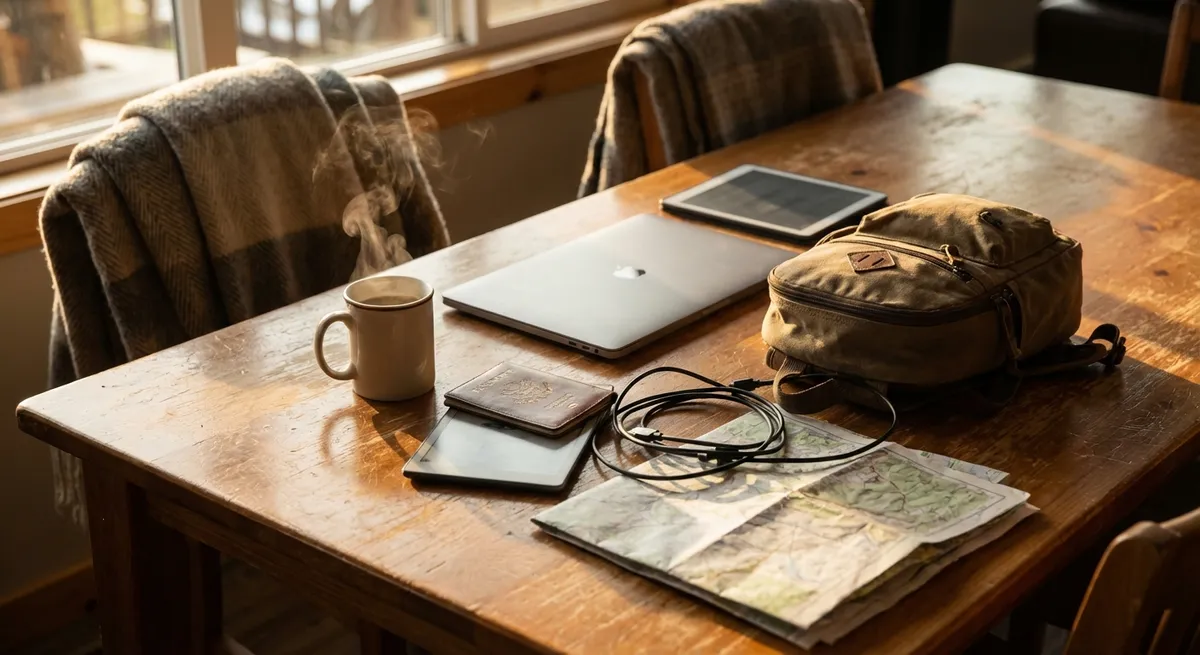
If you stay on the road long enough, you eventually realize most “must-have” apps never survive past your third border crossing. Roaming, flaky Wi‑Fi, random SIM cards, and airport security all expose which tools are actually useful and which just look good in YouTube thumbnails. This isn’t about shiny tech—it’s about a small, reliable toolkit that keeps your work moving when everything else is chaos.
Below are five field-tested, essential digital habits and tools that have held up across bad hostels, long bus rides, and time zones that don’t respect your calendar.
Build a Two-Layer Backup System That Survives Lost Luggage
Backing up isn’t optional when your entire livelihood lives on a 13" screen that’s bouncing between cities. The trick is running two layers of backup: one physical, one cloud—and making both automatic.
Use a small, rugged SSD (not a spinning hard drive) that lives in a different place than your laptop—separate pocket in your bag, or even in your partner’s luggage if you travel together. Set up automatic backups (Time Machine on macOS, File History or third‑party tools on Windows) so you don’t need to remember to run them after a 10‑hour travel day.
Cloud backup is your safety net when your backpack goes missing or your laptop dies in a humid apartment. Tools like Backblaze, iDrive, or similar continuous backup services quietly mirror your files online. Combine that with cloud storage you actively work in (Google Drive, OneDrive, Dropbox, or iCloud) and you’ll be able to switch to a rented or borrowed machine in a pinch.
Key points to make this work on the road:
- Schedule heavy backups for night hours when Wi‑Fi is usually better.
- Exclude huge, non-critical folders (e.g., old video archives) so you don’t clog weak connections.
- Keep offline copies of passport scans, key client docs, and emergency info synced to your phone and laptop so you can access them without internet.
When—not if—something breaks, this setup turns a potential crisis into an annoying chore.
Use Cross-Platform Tools So You Can Work From Anything
At some point, you’ll be forced off your main device: a busted keyboard in Bali, spilled coffee in Lisbon, or a customs delay where your laptop gets “held for inspection.” The way you choose your tools decides whether you can still work from a café computer or a tablet.
Prioritize apps and services that:
- Run in a browser or have solid web versions (email, project management, documentation).
- Sync across all your devices (phone, laptop, maybe a tablet).
- Don’t rely on weird licenses tied to a single machine.
Email, project management, and document tools that are accessible from any browser (Gmail, Outlook web, Notion, Asana, Trello, Google Docs, Office 365 web, etc.) allow you to keep working from coworking rentals, hostel desktops, or even a friend’s laptop.
A few practical moves that help:
- Keep your password manager (and 2FA methods) available on your phone and one extra device, not just your laptop.
- Store essential workflows in shared documents—not just on your desktop—so you can pick up from anywhere.
- Favor file formats that open easily (PDF, .docx, .xlsx) over niche formats tied to one app.
Think of your laptop as your favorite workstation, not your only workstation. Your toolkit should be portable even without your hardware.
Turn Your Phone Into a Backup Office, Not Just a Distraction Machine
Most nomads underestimate how much real work they can push through a phone when the laptop battery is dead or there’s no safe place to open it. With the right setup, your phone becomes a credible backup office, not just a doomscrolling device.
Core upgrades that make a big difference:
- A good keyboard: A compact Bluetooth keyboard and a small phone stand can turn a cramped train or bus into a workable micro-desk.
- Work-capable apps: Install mobile versions of your main tools—calendar, email, docs, Slack/Teams, project management—and actually log in before you need them.
- Offline mode: Pre-download key files and enable offline access in apps like Google Docs, Notion, or OneDrive for days with bad or no internet.
- Scanning & signing: Use mobile scanner apps (e.g., Adobe Scan, Microsoft Lens, or built-in document scanners) to handle paperwork, and e-signing tools (e.g., DocuSign or Adobe Acrobat) to sign contracts on the go.
Set one home screen page for “work only” apps and a different one for social and entertainment. When you’re on a tight deadline in a noisy café or budget bus, that separation helps you treat your phone as a tool, not a time sink.
Make Your Internet Setup Travel-Proof Before You Board the Plane
Good tools are useless without a connection, and most airports and Airbnbs overpromise and under-deliver on Wi‑Fi. You don’t need a suitcase full of gear, but you do need a basic strategy for staying online without panic.
A practical, tested setup looks like this:
- Local SIM or eSIM: Get comfortable buying local data or using a reputable eSIM provider. Before arrival, check which carriers actually work well in the areas you’ll stay—not just the tourist reviews near the airport.
- Tethering as Plan B: Ensure your phone plan allows hotspot/tethering, and know how to turn it on quickly. Test tethering before you’re staring down a client call.
- Browser extensions and light tools: Install ad blockers and lightweight browsers for poor connections. Set email and cloud tools to “low bandwidth” or “offline-first” modes where possible.
- Video call backups: Have backup call links ready (Zoom, Google Meet, Teams, WhatsApp, or even plain phone calls). When Wi‑Fi is unstable, switching off video and sliding to audio-only can save the meeting.
Before booking long stays, ask hosts direct questions: “What’s the actual download/upload speed?” “Is the router in the unit or shared for the building?” “Can you send a screenshot of a speed test from the workspace?” It feels awkward, but it’s cheaper than relocating mid-month because your ‘high-speed internet’ tops out at 2 Mbps.
Standardize Your Workflow So You Spend Less Time Fixing, More Time Working
The lonelier part of nomad life isn’t always the travel—it’s the cognitive load of your tools being slightly different in every country, coworking space, and rental. Standardizing your workflow across a small set of trusted tools saves hours you’d otherwise waste reconfiguring.
The goal is to define your default way of working, and then bend new environments to it rather than reinventing your system every stop:
- Keep the same file structure everywhere: same folder names, hierarchy, and naming conventions, synced via cloud storage.
- Use one main to-do/project system (not three half-updated ones) and commit to it, whether it’s Asana, ClickUp, Notion, Todoist, or something similar.
- Create simple templates: client onboarding docs, proposals, invoices, content outlines, meeting notes. Store them in a shared folder so you’re never starting from zero.
- Use the same calendar and time zone logic: keep your calendar in your “home” time zone (or UTC) and use world clock tools so you don’t mix up calls when you cross borders.
Whenever you add a new tool, ask: “Will this still be useful when I’m jet-lagged, on 4G, and working from a wobbly hostel desk?” If the answer is no, it doesn’t deserve space in your system.
Conclusion
Digital nomad life quietly rewards boring, robust tools over flashy setups. A rugged SSD, a solid password manager, cross-platform apps, a phone that doubles as a backup office, and a standardized workflow don’t look glamorous—but they’re what keep client work moving while your luggage is lost and your Airbnb host is “resetting the router again.”
You don’t need more tech. You need fewer tools that do more work, in more places, with less drama. Build that lean kit once, refine it each trip, and let everything else stay in the YouTube videos.
Sources
- [Backblaze Online Backup – How It Works](https://www.backblaze.com/backup-your-computer.html) - Explains continuous cloud backup and why offsite copies matter for device loss or failure.
- [U.S. Federal Communications Commission – Mobile Broadband Guide](https://www.fcc.gov/consumers/guides/mobile-broadband-understanding-your-options) - Overview of mobile broadband, hotspots, and tethering considerations.
- [Google Workspace – Work Offline with Docs, Sheets & Slides](https://support.google.com/docs/answer/6388102) - Instructions and best practices for setting up offline access to documents.
- [Microsoft – Windows Backup and Restore Options](https://support.microsoft.com/en-us/windows/backup-and-restore-in-windows-10-5300598a-52c5-52c4-8d69-39fda6983ca0) - Official guidance on configuring local backups on Windows devices.
- [Apple – Use Time Machine to Back Up Your Mac](https://support.apple.com/en-us/HT201250) - Step-by-step guide to setting up automatic backups on macOS.
Key Takeaway
The most important thing to remember from this article is that this information can change how you think about Digital Tools.