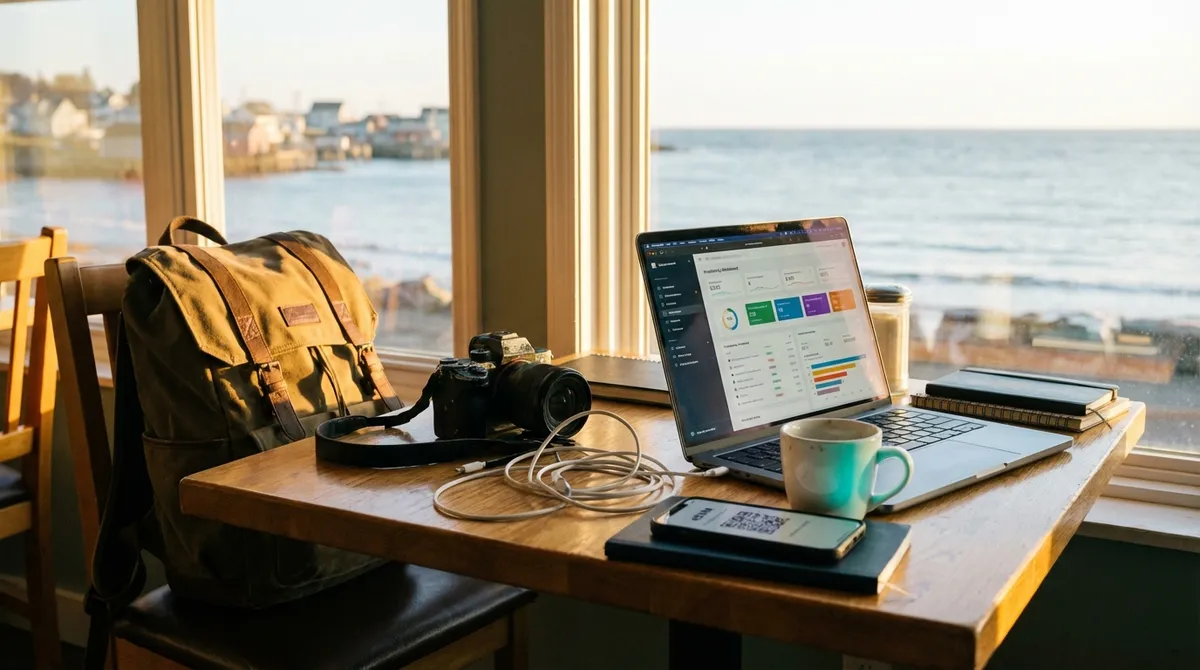
The tools that actually matter on the road aren’t the shiny new apps everyone’s posting screenshots of—they’re the ones that keep working when the Wi‑Fi sucks, the power cuts out, and your client suddenly needs a file you saved three laptops ago. As a digital nomad, your setup has to be boringly reliable, not just exciting. This guide walks through five essential, field‑tested ways to use digital tools so your work and life stay solid, even when your surroundings don’t.
Tip 1: Build a “Redundant by Design” Storage System
If your files live in only one place, you’re not remote—you’re one spilled coffee away from unemployment. The goal is simple: any important file should be recoverable within minutes from at least two different services and one physical device.
Use one main cloud storage (like Google Drive, Dropbox, or OneDrive) as home base. Organize it deliberately: a top-level “Work,” “Admin,” and “Personal” structure keeps you from hunting through chaos at the worst possible time. Then, set a weekly reminder to back up your active projects to an external SSD. Syncing isn’t the same as backing up; if you delete a file accidentally, sync will happily delete it everywhere.
For your absolute mission‑critical documents (passport scans, contracts, logins backup codes), keep them in two places: a secure, encrypted cloud folder and a password manager’s secure notes. Test your restore process once a month. If you can’t explain exactly how you’d recover your laptop and phone being stolen in the same day, your system isn’t finished yet.
Tip 2: Choose Tools That Survive Bad Internet, Not Just Good Demos
Most software is built assuming stable broadband and quiet offices. Digital nomad reality is airport Wi‑Fi that times out, guesthouses with one router for thirty rooms, and calls from tiled bathrooms for better acoustics. Your tools have to degrade gracefully when the connection doesn’t cooperate.
Whenever you try a new tool, ask one question: “What happens when the internet drops?” Tools with offline modes—like Notion with offline pages, Google Docs with offline access enabled, or Obsidian for notes—let you keep working instead of watching a spinning wheel. For communication, favor apps that handle poor connections well: asynchronous tools like Slack or email for detailed updates, and low‑bandwidth options like audio‑only calls when video keeps freezing.
Avoid stacking tools that duplicate the same job just because they’re trendy. Every extra app is another login to manage, another thing to update on slow Wi‑Fi, and another failure point when you’re under pressure. Pick one main tool per function—one for notes, one for tasks, one for storage—and stick with it long enough to build muscle memory.
Tip 3: Lock Down Your Security Before You Cross Borders
Security doesn’t feel urgent—until you’re flagged at immigration, your accounts get locked on a new IP address, or your coworking Wi‑Fi has someone running a man‑in‑the‑middle attack for fun. Dealing with security retroactively is painful. Set it up properly once and your digital tools do the hard work.
Start with a reputable VPN and use it consistently on all public networks: airports, cafes, hostels, even coworking spaces. Not all VPNs are equal—look for transparent privacy policies, no‑logs claims that have been independently audited, and apps that don’t slow your connection to a crawl. Next, enable multi‑factor authentication (MFA) on your primary accounts: email, cloud storage, banking, and password manager. Use an authenticator app or hardware key, not SMS if you can avoid it—SIM cards get lost, stolen, or blocked when you change countries.
Password managers are non‑negotiable once you juggle multiple client logins, bank accounts from different countries, and random hotel portals. Use one that syncs across devices and supports secure notes for things like passport numbers, visa details, and insurance policy info. Finally, keep a small, encrypted “travel emergency” folder in your cloud: scans of your passport, visas, vaccination records, and key contact numbers. If your bag disappears, you don’t want to start from zero.
Tip 4: Make Your Time Zones and Calendars Boringly Predictable
One of the fastest ways to lose clients is missing calls because you misread the time difference—especially when you hop from Bali to Lisbon and your calendar doesn’t catch up. Instead of wrestling with time zones every week, let your tools do the heavy lifting and build fixed, predictable routines.
First, standardize your “home” time zone for work—often UTC, your main client’s zone, or where your company is headquartered. Set that as a secondary time zone in your calendar app so you always see both. When scheduling anything with others, send a calendar invite instead of “Let’s talk at 4 pm your time?” messages. That invite becomes the single source of truth no matter where you fly next.
Use a world clock app or built‑in tools on your phone to pin 3–5 key locations: where you are, where your main clients are, and any recurring collaborators. Before you agree to a time, quickly check those clocks. Then, protect your deep work by blocking “no‑call” windows in your calendar—tools like Google Calendar or Outlook make this easy. Clients learn your availability from your calendar, not your last WhatsApp reply at midnight.
Tip 5: Design a Minimal, Resilient Core Setup (and Ditch the Rest)
Most nomads carry far more tools than they need: three note apps, five messaging platforms, and half a dozen “productivity hacks” they forgot to open after week one. The more complex your setup, the more fragile it becomes when something breaks. Aim for a small, resilient “core stack” that you could rebuild from a new laptop in under an hour.
Define your essentials in five buckets: communication, storage, tasks, notes/knowledge, and finance. For each bucket, pick one primary tool and one backup path. For example: primary communication via email + Slack; backup via WhatsApp or phone. Primary storage in Google Drive; backup on an external SSD. Primary tasks in Todoist; backup as a simple text file or notebook if your tools go down for a day.
Periodically audit your stack every 3–6 months. Open your apps list and browser extensions and ask, “Have I used this in the last 30 days?” If not, uninstall or disable. Fewer tools mean fewer updates, fewer things to sync over weak Wi‑Fi, and fewer surprises when something changes pricing or terms. Your future self, trying to get work done from a bus with spotty 3G, will thank you.
Conclusion
The best digital tools for nomads aren’t the ones that make impressive screenshots—they’re the ones you barely think about because they just work, in the background, across countries, time zones, and bad infrastructure. Build redundancy into your storage, choose apps that function offline, secure your accounts properly, let calendars manage your time zone headaches, and keep your core stack lean and resilient. Do that, and you’ll spend a lot less time troubleshooting and a lot more time actually living the life you traveled for.
Sources
- Google Workspace: Work offline in Drive - Official guide on enabling and using offline access for Google Drive and Docs
- NCSC (UK National Cyber Security Centre): Securing your devices - Practical advice on VPNs, software updates, and device security
- US Federal Trade Commission: Multi-factor authentication - Explanation of MFA and why it matters for protecting online accounts
- Carnegie Mellon University: Using Public Wi-Fi Networks Safely - Guidance on risks of public Wi‑Fi and safe usage practices
- Microsoft Support: Set multiple time zones in Outlook Calendar - Instructions for configuring multiple time zones to manage global schedules
Key Takeaway
The most important thing to remember from this article is that this information can change how you think about Digital Tools.