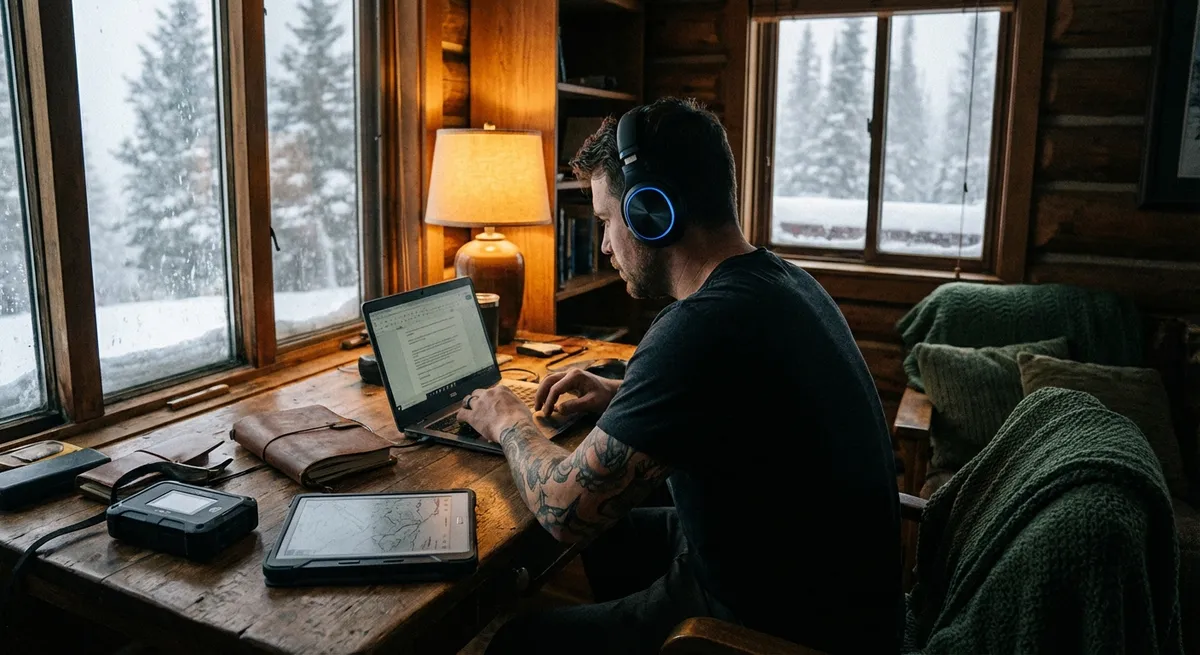
Digital nomad life looks loud on Instagram, but the real magic happens in quiet moments: focused work in a noisy hostel, a stable connection in a shaky café, a backup plan when your “reliable” Wi‑Fi suddenly dies. The tools you choose either smooth that out—or turn every workday into damage control.
This isn’t another shiny‑app roundup. It’s a field-tested look at how to use digital tools so they actually support your work, not just clutter your phone. Below are five essential, experience-backed tips to keep your setup lean, resilient, and ready for real-world chaos.
1. Treat Your Laptop Like Mission-Critical Equipment
Most nomads treat their laptop like luggage. You can’t. It’s your only real office, and the way you equip it decides whether you hit deadlines or apologize to clients from airport benches.
First, harden the basics. Turn on full-disk encryption (BitLocker on Windows, FileVault on macOS) so a stolen machine doesn’t also mean a data breach. Enable a strong password and a password manager (Bitwarden, 1Password, or similar) so you’re not reusing the same weak login across everything. It’s boring, but this is what separates casual travelers from people who can actually run a business from the road.
Next, assume your laptop will be dropped, spilled on, or stolen at some point. Cloud-first tools are your seatbelt. Keep key work in version-controlled or synced locations (Google Drive, Dropbox, OneDrive, or a Git provider for devs). Store your critical project docs, invoices, templates, and IDs in structured folders you can access from another device within minutes. If you lost your laptop at 10 a.m., you should be operational again by lunch on a rented or borrowed machine.
Performance matters too. A bloated laptop dies early in the day and throttles under load. Strip out startup apps, use a lightweight browser profile for work (with only essential extensions), and keep your desktop clean. When your machine runs lean, you can survive on flaky café outlets and random coworking chairs without watching your battery drain from 100% to 20% mid-call.
2. Build a Connectivity Backup Stack, Not Just “Hope the Wi‑Fi Works”
Nomads who rely on the words “Wi‑Fi included” in a booking description eventually learn the hard way: that phrase means nothing. Your digital tools should be built around the assumption that the internet will fail at the most inconvenient possible moment.
Start with a proper hotspot setup. That means an unlocked phone or a dedicated travel hotspot that can take local SIMs. Research the top two or three carriers in each country before you arrive and buy a data-heavy SIM from one with reliable coverage, not just the cheapest. Keep your hotspot setup tested—don’t wait for a Zoom call to find out your tethering is blocked or misconfigured.
Next, give your tools offline muscles. Use note-taking and document tools that sync but also work fully offline (Notion with offline enabled, Obsidian, OneNote, Google Docs with offline mode). Before big travel days or important projects, pre-download key docs, slide decks, and reference materials. Your workflow should degrade gracefully: from full online, to hotspot, to offline productivity mode without killing the workday.
Where possible, favor tools that are light on bandwidth. Video calls can be dropped to audio with screenshare disabled; messaging tools like Slack or Teams can be used with notifications trimmed and file previews limited. During weak connections, close everything non-essential: cloud backup, streaming, auto-updating tools. Your goal is simple—protect the upstream bandwidth for the task that actually matters in that hour.
3. Design a Toolset That Survives Frequent Context Switching
Nomad life means constant context shifts: bus to hostel, hostel to café, café to rooftop, all with different noise levels, seats, and distractions. If your digital tools require “ideal conditions” to be useful, you won’t be consistent. You need tools that follow you through chaos and keep your brain on track.
Start with task management. Whether you use Todoist, Things, ClickUp, Asana, or a simple Kanban board, the tool must do three things well: capture tasks fast, show you only what matters today, and sync cleanly across laptop and phone. Overcomplicated systems die on the road. Keep it to clear projects, due dates, and a realistic “Today” view you actually look at.
Your communication stack needs hard boundaries. Mute or schedule notifications so Slack, Teams, and email don’t follow you 24/7 across time zones. Turn off non-essential notifications on your phone—travel apps and banking, yes; social apps, no. During deep work blocks, use focus modes (native OS focus, Freedom, or similar) to temporarily block tools that drag you into reactive mode instead of letting you push important work forward.
Use adaptable audio tools. A decent pair of noise-cancelling headphones paired with simple ambient sound or focus playlists (Spotify, YouTube, Endel) can simulate a stable office environment in wildly inconsistent places. Make “headphones on” a visual signal for yourself: once they’re on, tools like your calendar, tasks, and docs are the only things that should be allowed to pull your attention.
4. Put Automation to Work, but Keep Manual Overrides
Automation is the only way to stay on top of everything while your life is in transit—but badly designed automation on the road creates its own disasters. The trick is to automate the repetitive, not the critical.
For recurring admin work—sending invoices, logging expenses, capturing receipts—build simple workflows using automation tools (Zapier, Make, or native integrations). For example: new Stripe payments create rows in your accounting spreadsheet, or calendar events with “CLIENT” in the title generate a note template in your notes app. Set these up slowly and deliberately, test them, and resist the urge to “automate everything.” Every new automation is something you’ll have to debug from a hostel bunk at some point.
Use travel and time-zone aware tools to reduce mental overhead. Calendar apps that handle multiple time zones cleanly (Google Calendar with secondary time zones, or tools like Calendly for booking) save you from scheduling nightmares. Let software convert time zones automatically instead of you doing midnight math before every meeting.
But never outsource final responsibility. Critical tasks—client deadlines, visa dates, payment due dates—deserve multiple reminders and at least one manual check. Use layered reminders: calendar alerts + a task manager item + sometimes a note pinned to your “Today” view. Automation should keep your routine tasks moving; your judgement should still guard the high-risk stuff.
5. Keep a Minimal “Travel Mode” Toolkit Ready for When Things Go Sideways
At some point, your plans will fall apart: lost bag, laptop repair, unexpected border issue, or a family emergency that sends you across three time zones in 24 hours. When that happens, you don’t need all your tools—you need a stripped-down set that keeps you operational under stress.
Define your travel-mode essentials. Typically this includes: password manager access, email, calendar, primary messaging app (WhatsApp/Signal/Telegram), main work platform (Git provider, Notion, Google Workspace, or similar), banking and 2FA apps, and cloud storage. Test that you can log into these from a clean browser on a borrowed machine using just your phone and recovery methods.
Store critical digital copies in a clearly labeled, secure cloud folder: passport, visa info, travel insurance details, key contracts, emergency contact list, plus any must-have work docs. Encrypt sensitive files where appropriate and don’t scatter them across random services. In a crisis, you don’t want to remember where you put things—you want a single, obvious place.
Finally, practice your fallback. Once or twice a year, simulate a “no laptop for 24 hours” day. Use a tablet, borrowed computer, or just your phone, and see what breaks. Fix those friction points with better app choices, clearer folder structures, or updated recovery details. The time to discover your 2FA backup codes are on the laptop you just spilled coffee on is not during a client deadline.
Conclusion
The best digital tools for nomads don’t shout about themselves—they quietly remove friction from your day so you can focus on the work that pays for all those plane tickets.
If you treat your laptop like mission-critical gear, build a layered connectivity setup, design a toolset that survives chaos, use automation with guardrails, and keep a ready “travel mode” fallback, you stop living at the mercy of bad Wi‑Fi and random disruptions.
Your goal isn’t to collect more apps—it’s to make sure that when your environment changes (and it will), your work barely notices.
Sources
- Cybersecurity & Infrastructure Security Agency (CISA) – Securing Physical Devices – Practical guidance on protecting laptops and mobile devices, relevant for nomads on the move
- Microsoft – Turn on Device Encryption – Official instructions for enabling encryption on Windows devices
- Apple – Mac Security and FileVault Encryption – Details on using FileVault to secure data on macOS, important for traveling professionals
- U.S. Federal Trade Commission – Online Security – Broad, trustworthy overview on passwords, 2FA, and protecting personal information online
- Google Workspace Learning Center – Work Offline in Google Docs, Sheets & Slides – Explains how to set up offline work in Google’s tools, critical for low-connectivity situations
Key Takeaway
The most important thing to remember from this article is that this information can change how you think about Digital Tools.