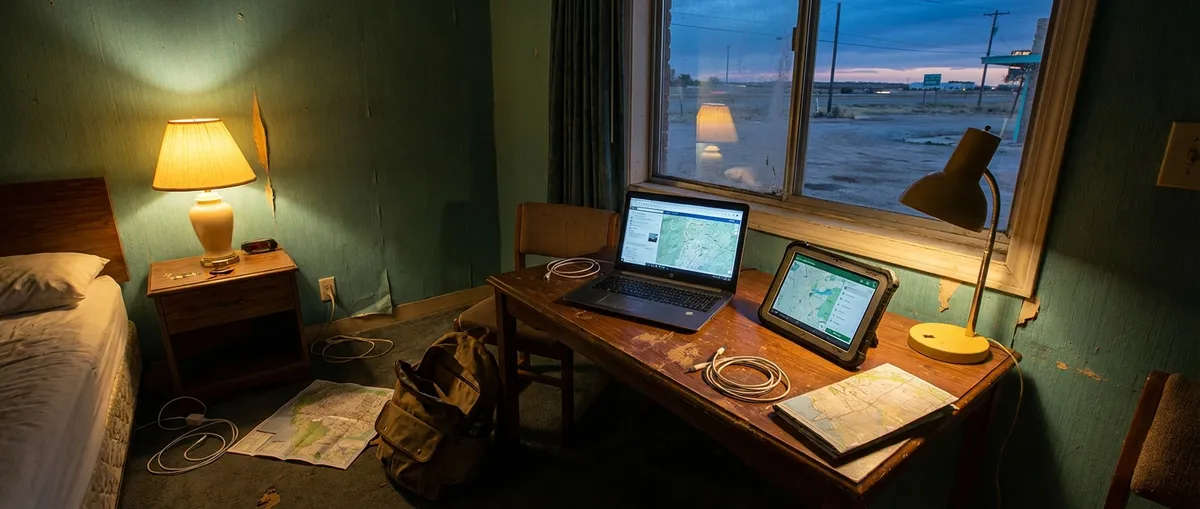
If you travel and work long enough, you learn this the hard way: gear is easy, workflow is hard. Anyone can download another “productivity” app. The challenge is building a quiet, reliable digital setup that doesn’t crack the moment your Wi‑Fi drops or your flight gets canceled.
This isn’t a shiny-app roundup. It’s a practical look at how to use digital tools in a way that still works when you’re tired, offline, or halfway through a border crossing. Below are five field-tested principles, with specific tools you can plug into your own setup.
1. Build a Redundant Note System (So Your Brain Isn’t the Single Point of Failure)
Nomad life throws information at you: visa rules, SIM PINs, client specs, bank lockout codes, random café passwords. If you keep this scattered across notebooks, email, and screenshots, you will lose something important when you change countries.
Instead, treat your notes like critical infrastructure:
- Use one primary note app that syncs across devices (e.g., Obsidian, Notion, Evernote, Apple Notes, Google Keep). The specific app matters less than actually committing to one.
- Create a “Nomad Ops” notebook with sections like: Travel Docs, Money & Banking, Clients & Projects, Medical, Local Logistics (SIM, landlord, emergency numbers).
- Tag notes by country and city so you can quickly pull up “Portugal – Lisbon – Housing” a year from now.
- Keep offline access turned on for key notebooks. Many apps let you pin or download notebooks or folders for offline use.
- Save your “this would ruin my week if I lost it” items (passport scans, visa letters, vaccination proof) as PDFs in both your note app and a cloud drive folder.
- Notes: Obsidian or Notion for structure; Apple Notes / Google Keep for quick capture
- Storage: Google Drive, Dropbox, or iCloud with offline folders enabled
- Backup: Export critical docs as PDF and keep a copy on your laptop’s local drive
Practical combo that holds up:
The goal: if your backpack gets lost, you can walk into an internet café, log in, and still access everything you need to function.
2. Choose Communication Tools That Survive Bad Internet
Remote work dies in two places: shaky Wi‑Fi and mismatched expectations. You can’t always fix the first, but you can absolutely fix the second with the right tool setup and habits.
Anchor your communication in a stack that works in low-bandwidth situations:
- Asynchronous first, calls second. Use tools like Slack, Microsoft Teams, or even well-structured email threads as your default. Calls become for edge cases—decisions, conflicts, or deep collaboration.
- Use written updates instead of hoping meetings happen. A weekly or twice-weekly “Here’s what I did / what’s blocked / what’s next” in Slack or email keeps trust high when your time zone or Wi‑Fi is weird.
- For video calls, keep backup tools in case your main one fails: if Zoom chokes, jump to Google Meet or even a phone call with shared docs.
- Record and share short Loom or screen-recorded videos to show progress and explain complex changes without trying to coordinate calendars.
- Keep a “Call Triage” channel or thread where you and your team can say “Connection unstable, moving to chat,” instead of forcing a bad call.
- Async: Slack / Teams + email (Gmail or Outlook)
- Calls: Zoom or Google Meet, with a simple dial-in/phone option as backup
- Quick explainers: Loom or built-in screen recorder (QuickTime, Windows Game Bar, etc.)
Resilient combo:
If your comms stack can’t function over mediocre café Wi‑Fi, it’s not a nomad-ready stack.
3. Treat Time Zone Management Like a Real System, Not a Guess
“Can you do 3 p.m. my time?” is how misunderstandings start. If you’re traveling across time zones regularly, guessing and mental math will burn you.
Use digital tools to do the heavy lifting:
- Use time zone conversion tools (like Time.is or Every Time Zone) and calendar apps that auto-adjust appointments to your current location.
- Set your calendar to show multiple time zones—your current one, one for your main client/company, and one for any critical partner.
- Use fixed “availability blocks” that you keep consistent as you move. Example: “I’m always available 2–6 p.m. Berlin time” regardless of where you are.
- Turn on time zone prompts in Google Calendar or Outlook so you’re alerted when traveling across zones.
- In your communication tools, build a habit: always share time suggestions in at least two time zones plus a direct calendar invite link.
- Calendars: Google Calendar or Outlook with “world clock” or “secondary time zone” enabled
- Reference: Time.is, WorldTimeBuddy, or the built-in world clock on your phone
- Scheduling: Calendly or SavvyCal (set to your stable “client time zone”)
Tool setup that works:
Time confusion is one of the quietest reputation killers for nomads. Let tools handle it so you don’t have to think about it every day.
4. Lock Down Security Before Something Goes Wrong
You carry your entire work and financial life on a few devices. In transit hubs and hostels, that’s essentially walking around with unlocked luggage full of cash—unless you set up real security.
Treat your security tools as non-negotiable:
- Use a password manager (1Password, Bitwarden, Dashlane, etc.) and stop reusing the same three passwords. This matters even more when you’re using random Wi‑Fi networks.
- Turn on two-factor authentication (2FA) for all critical accounts: email, banking, cloud storage, main work tools. Prefer app-based 2FA (e.g., Authy, Microsoft Authenticator, Google Authenticator) over SMS when possible.
- Encrypt your laptop’s drive (macOS FileVault, BitLocker on Windows). If it’s stolen, your files are still locked.
- Use a VPN when working on public Wi‑Fi, especially for banking, email, and internal company tools.
- Keep at least one offline copy of extremely critical data (e.g., a securely stored encrypted backup drive that stays in your luggage or with someone you trust).
- Passwords: 1Password or Bitwarden
- 2FA: Authy or Microsoft Authenticator
- VPN: Mullvad, Proton VPN, or a reputable paid provider
- Device encryption: FileVault (macOS), BitLocker (Windows), full-disk encryption on Android, built-in encryption on modern iOS
Practical baseline:
You won’t care about app aesthetics when your laptop disappears in a train station and you realize your accounts are still safe.
5. Design a Work Environment You Can Rebuild in Under 30 Minutes
Nomads change environments constantly: today a co-working space, tomorrow a hostel, next week a borrowed desk in a friend’s flat. If your workflow only works on your “perfect setup,” you’re going to lose a lot of days to friction.
Use tools to make your environment portable:
- Standardize your core toolset: one main browser, one password manager, one note app, one cloud storage provider, one task manager. The fewer moving parts, the easier it is to rebuild.
- Use browser profiles and sync (Chrome, Firefox, Edge, Brave) so your bookmarks, extensions, and logins reappear on a new or borrowed device.
- Document your “clean setup checklist” once: what apps you install first, what settings you change, what browser extensions you add (adblocker, password manager, grammar checker, tab manager).
- Keep your task manager simple and cloud-based: Todoist, ClickUp, Trello, or even a Google Sheet. Your tasks should follow you, not live on a single laptop.
- Maintain a “Focus Mode” preset: noise-cancelling app or headphones, website blocker (e.g., Freedom, Cold Turkey), and a simple timer method (Pomodoro, 50/10, etc.). This lets you recreate deep-work conditions in chaotic environments.
- Browser: Chrome or Firefox with sync turned on
- Tasks: Todoist / Trello / ClickUp, or a minimal Notion board
- Focus: Noise-cancelling headphones + Forest/Freedom/Cold Turkey + a basic timer
Reusable setup:
If your laptop died tomorrow, you want to be able to buy or borrow a machine, log into a handful of tools, and be back to functional in one focused session.
Conclusion
Digital nomad success isn’t about having “the best apps”; it’s about having tools that keep working when everything else around you changes. Notes that stay findable when you cross borders. Communication that holds up on bad Wi‑Fi. Time zones that manage themselves. Security that assumes theft is a matter of when, not if. A work setup you can rebuild fast, anywhere.
Pick one of these five areas, tighten it up this week, and treat it like long-term infrastructure—not another experiment. The less your tools demand from you, the more attention you have for the actual reasons you’re on the road in the first place.
Sources
- Travelers’ Health – Centers for Disease Control and Prevention – Official guidance on travel preparation and health considerations, useful when organizing medical and vaccine documentation in your digital notes.
- Cybersecurity & Infrastructure Security Agency (CISA): Securing Your Devices – Practical recommendations on device security, passwords, and encryption that support the security practices discussed above.
- Federal Trade Commission (FTC): Online Security – Clear guidelines on password managers, two-factor authentication, and safe browsing habits relevant to nomads using public Wi‑Fi.
- Google Workspace Learning Center: Work Across Time Zones – Detailed instructions for handling multiple time zones in Google Calendar and communication tools.
- NIST Password Guidelines (NIST Special Publication 800-63B) – Official U.S. government standards on digital identity and password management, backing the recommendations for strong, unique passwords.
Key Takeaway
The most important thing to remember from this article is that this information can change how you think about Digital Tools.